Unlocking Success: The Magic of Bargain Books in Your Store

November 29, 2023

In the dynamic world of retail, finding the perfect balance between quality offerings and budget-friendly choices is an art. One avenue that holds immense potential for both customers and store owners is the realm of bargain books. These treasures not only delight avid readers but also open up new avenues for sales growth and customer loyalty. Let’s explore the benefits of incorporating bargain books into your inventory and how to maximize their sales in your store.

  1. Broadening Customer Base

Bargain books act as a magnet for a diverse audience. While budget-conscious readers are drawn to the affordability, others might be enticed to explore new genres or authors they wouldn’t have considered at regular prices. By offering discounted books, you attract a wider customer base, making your store more inclusive and appealing.

  1. Boosting Impulse Purchases

A well-displayed section of bargain books near the checkout counter can spark impulse purchases. Customers often find it hard to resist a good deal, especially when it comes to adding an affordable gem to their purchase. Consider strategically placing bargain books in high-traffic areas to capitalize on these impromptu buying decisions.

  1. Building Customer Loyalty

Bargain books can serve as a gateway to cultivating long-term relationships with your customers. By offering them affordable options, you demonstrate a commitment to providing value, creating a positive shopping experience. Satisfied customers are more likely to return, and with word-of-mouth marketing, your store can become a go-to destination for both quality and savings.

  1. Creating Theme-Based Displays

Maximize the appeal of bargain books by creating theme-based displays. Whether it’s seasonal discounts, genre-specific promotions, or highlighting hidden gems, organizing your discounted selection in an attractive and organized manner can significantly enhance their appeal. Visual storytelling around the bargain books encourages customers to explore and discover new titles.

  1. Leveraging Social Media for Promotion

Harness the power of social media to promote your bargain book offerings. Share regular updates on these titles or host online book discussions around these budget-friendly options. Engaging with your audience through platforms like TikTok, Facebook, Instagram, or Twitter can amplify your store’s visibility and attract a broader online audience. Stay connected to BookTok for what’s trending, as a lot of bargain book titles are highly sought after.


Incorporating bargain books into your retail strategy isn’t just about providing affordable options; it’s about creating an experience that resonates with your customers. By maximizing the benefits of bargain books, your store can become a haven for both savvy readers and those looking to embark on new literary adventures without breaking the bank. Unlock the magic of affordability and watch as your store transforms into a thriving hub for book enthusiasts of all kinds.


Sidebar

7 Myths of Bargain Books

November 14, 2023

Bargain books are a great way to add value and variety to your store, but some wholesale book buyers may have doubts or challenges that stop them from buying bargain books or creating a discount book section in their store. This blog will explore seven of the most common myths or misconceptions about bargain books and address some of the worries a new buyer might have. We understand that many of our readers already appreciate the value and benefit that bargain books bring to their business, but we hope you will still find this article useful.

Myth 1: Bargain books do not support authors.

The misconception that bargain books fail to support authors is rooted in the belief that they don’t provide royalties. While it’s true that bargain books do not supply royalties to authors, this argument holds validity. However, it is essential to recognize that bargain books can still significantly support authors, albeit in a different manner. This is particularly relevant for emerging authors seeking to establish themselves in an industry increasingly dominated by bestsellers.

For authors with substantial book contracts and established success, the impact of bargain book sales may be marginal. However, for lesser-known authors striving to make a mark, the accessibility of their work through bargain books presents an opportunity. Enticed by the affordability and willingness to take a chance, readers might discover an unfamiliar author. Should they develop a fondness for the book, they will likely transition to purchasing subsequent releases at a front-list price, thereby bolstering the author’s overall support and recognition.

Myth 2: Front-list sales will be cannibalized.

When contemplating the addition of a bargain book section, bookstore owners often worry about it detracting from front-list sales. However, the experiences of numerous successful book retailers worldwide suggest otherwise. Contrary to the concern, incorporating bargain books enhances front-list offerings by attracting customers and motivating them to make additional purchases. High prices may limit customers to buying only one or two new books at full price. Yet, strategically placing enticing bargain books, especially near the checkout, can generate additional sales. Consider the scenario where a book category, like cookbooks, is losing popularity due to the prevalence of online recipes. Customers may hesitate to spend $30 or $40 on a cookbook, leading to doubts about allocating more store space. Nevertheless, a value cookbook at a discounted price could still capture their interest.

Myth 3: Selection is limited.

With hundreds of new arrivals added to our website daily and more than 50 categories available, there is always something for every organization type – big or small! We add over half a million books to our inventory each week to keep your organization’s reading materials fresh and engaging. Whether you’re a retailer, educator, or nonprofit organization, our vast network of connections with every major publisher in North America gives us a diverse selection of over 35,000 titles for you to choose from. If you haven’t checked out bookdepot.com or bookdepot.ca, you don’t know what you’re missing out on.

Myth 4: Bargain book quality is compromised.

At Book Depot, our inventory is comprised of excess inventory from publishers, all of which are unread and guaranteed to be in good condition. Typically, most books bear a discreet mark, such as a small line or dot on the page edges, indicating their discounted status in the market. This marking prevents the books from being returned to the publisher for additional credit, resulting in substantial customer savings. While some books may not carry this mark, it’s a standard feature for the majority.

Since our stock consists of publishers’ excess and returns, a few titles may exhibit minor shelf wear and retail stickers. Before shipping, we inspect books for damage, ensuring you receive products free from cover rips or tears. Our remarkably low damage claim percentage, less than 0.07%, underscores the high quality of our offerings.

Myth 5: Bargain books are dated.

Indeed, bargain books are not new releases, as publishers intentionally allow them to age before introducing them to the secondary market. Nevertheless, publishers have substantially reduced this timeframe, enabling these books to reach retailers sooner and maintain relevance. While there will always be some portion of dated inventory in the mix, there exists a substantial amount of relatively recent products that cater to the interests of your customers.

Myth 6: There is little profit in bargain books.

The profitability of bargain books is often underestimated. In essence, there exists a significant profit margin within the realm of bargain books. Despite being low-cost, they yield substantial returns. Strategic purchasing allows for swift turnover, fostering enthusiasm in your store for exceptional deals and potentially doubling or even tripling your investment. Long-time customers of Book Depot have consistently executed this approach, noting that while new book sales often break even, bargain books emerge as the primary source of profits. Considering the minimal investment required, why not explore this lucrative avenue?

Myth 7: Half the order is not filled.

Regarding order fulfillment, we are focused on the commitments made by Book Depot rather than dwelling on past experiences with other wholesalers. This issue often surfaces among booksellers who have previously ventured into purchasing bargain books with other companies. Without adequate inventory controls, there’s a risk of overselling popular books, leading to customer dissatisfaction. Unlike publishers who can effortlessly print more copies, our approach involves managing finite inventory responsibly. We’ve diligently implemented systems that provide accurate real-time visibility into our available stock. When an order is placed, the allocated quantities are promptly deducted from our inventory, ensuring a precise and reliable fulfillment process. Our website dynamically reflects available quantities, and we diligently monitor our fill rate, reinforcing our commitment to accurate order processing.

Sidebar

Book Depot and American Book Company – Together We Are Stronger

August 11, 2022

Over eight months ago already, Book Depot announced the acquisition of American Book Company (ABC), headquartered in Knoxville, Tennessee. Until this point, the bargain book industry had never seen an acquisition on this scale, and we are very excited about the positive impact this will have on our customers, publisher partners, employees, and all our stakeholders. As a combined entity, we have over 1.5 million square feet of warehouse space, employ more than 600 team members, and have exclusive arrangements for books from all the major publishers and a host of mid-tier publishing companies. Read on to learn a little more about our history together and why this acquisition is great news for you!


Where It Began

I met Pat O’Connor, President of American Book Company, over 20 years ago at the Spring Book Show in Atlanta, Georgia, even before I was with Book Depot. We instantly built a great rapport, and the friendship has only grown over the years, ultimately culminating in our business deal last December. Not only have we had a great friendship with ABC for many years, but we have done business with each other for over 20 years, with ABC being a key supplier to Book Depot. I believe this is a very important part of the story since this acquisition, or what I personally like to refer to as a partnership, is not two corporate strangers deciding to do a deal and then trying to figure out how to make it work. Prior to December, we intimately knew each other already, both on a personal and a corporate level. Our relationship is one built on years of trust, and it is on this foundation that we have mapped out a plan for the future that will continue to leverage each other’s strengths for the benefit of our customers.


Investing in the Bargain Book Industry

Over the last 12 years, Book Depot has invested over $15M USD in technology and automation to help scale our business and ultimately deliver a better customer experience that provides you with a greater selection of titles and industry best fill rates and delivery times. Having completed the transaction with American Book Company, we are thrilled to be able to deliver on our promise of being a “One Stop Shop” for all your bargain book needs.


As evidenced by our investments over the years, Book Depot continues to take the long-term view on the bargain book industry. We wouldn’t be investing millions of dollars if we didn’t believe in the future of books or the future of our company. Rather than taking out as much of the profits as possible, we continue to invest for the long term in order to deliver the best customer experience in the industry. I’m excited to say that we continue to push the limits of technology. Last year was no exception as we went live with our second book sortation machine and automated carton packing machines. New automation equipment enables us to sort more books, process them quicker, and assist us in providing you with an even better selection of titles.

Book Depot Sorting Machine Book Depot Carton Maker


One Stop Shop

However, all the infrastructure and systems are worthless if we couldn’t offer you the quality product that we have. Together with ABC, we have agreements in place so that shopping here gives you access to bargain books from all the major publishers and many smaller imprints. During the past six months, we added some key new suppliers that have complemented our mix to the point where I am confident in saying that our combined selection has never been better in all the years of being in this business.


Increased Book Selection

One of the exciting things about our partnership with ABC is learning from one another to leverage our unique abilities. ABC has always had access to large amounts of warehouse space, while Book Depot has often been constrained by space over the last ten years. With this acquisition, we will now have a much larger footprint with the lease of a one million square foot distribution center in Jefferson City, TN. This nearly triples our square footage in North America! With more space available to our combined companies, we will be able to purchase even larger deals from the publishers and process even more books. If you shop our website regularly, you will already have noticed a significant increase in the volume of new books available for sale as we have increased our inbound processing in a big way over the past six weeks. These volumes will now be the norm as we streamline our collective operations. Be on the lookout for an avalanche of books in the coming months!


Consistent Book Supply

We’ve spoken a lot about our investment in technology and automation at Book Depot over the years, and I’m excited to share the news that we are already well underway with our first major project at the ABC warehouse in Tennessee. Earlier this year, we signed a contract with one of the big five publishers to begin processing all their US returns as of January 1, 2023. This is by far one of the most exciting initiatives our companies have seen in the last 20 years. We are truly on the verge of a major transformation in the industry. With this contract, retailers in the US will now send their returns directly to our warehouse. We will process the returns on behalf of the publisher and ultimately purchase the books they would have sold us in the ordinary course of our business together.


As freight, warehousing, and labour costs continue to skyrocket, publishers see the need to remove waste out of the supply chain. By partnering together, we can create a more sustainable future for the publishing industry. This will help drive waste out of the supply chain and continue to provide you with a steady supply of fresh new bargain books. As we scale up our returns processing business and roll out our plan with more publishers, we will be working hard to drive costs down in an era of continued price pressure. With more investment in automation, our desire is to ensure that you will continue to have access to bargain books at great prices and with exceptional service for years to come.

American Book Company Warehouse


“All-In” on the Bargain Book Business

Ultimately, we are delighted to be partnered with American Book Company. This acquisition is part of our ongoing growth strategy to invest in the bargain book industry. As we see continued consolidation in the publishing business, it is becoming clearer that publishers require large partners that can provide turnkey inventory solutions for their remainders, overstocks and returns. Bringing together two of the industry’s key players gives us that ability. We are “all-in” on the bargain book business and look forward to continue serving you, our customers, for many more years to come. Thank you for putting your trust in us over so many years and allowing us to serve you.


Wilf Wikkerink

CEO

Book Depot

Sidebar

Custom List Tool: Refine Your Custom Lists

March 3, 2019

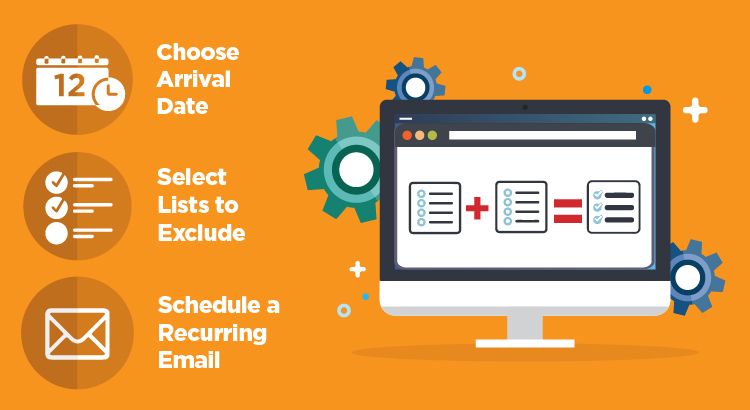
When you are using the Custom List tool, the Arrival Date and Exclude Lists attributes can work hand-in-hand to help you refine your lists and are very valuable tools when you are looking for the latest product. Sure, you can scan our New Arrivals list every couple of days like many of our customers do, but with this new tool you can do so much more—you can set additional parameters around the newest products, filter out any features you don’t want, and even schedule your list so it is emailed to you at the frequency of your choosing.


Video Tutorial

Here are brief video tutorials to show you how to refine your custom lists:

Arrival Dates:


List Exclusions:


Step-by-Step Instructions

To demonstrate how to use the Arrival Date and Exclude Lists filters, let’s walk through an example.


START

For the purpose of this example, we will create a list of new biography and autobiography titles that can be regularly emailed at a desired frequency. To start, select Category, Arrival Date, and Exclude Lists from the list of attributes on the Start page. Click Next to move forward to the Category page.


CATEGORY

On the Category page, select Biography & Autobiography from the list of categories and then click Next to move ahead to Arrival Date page.


ARRIVAL DATE

On the Arrival Date page, you have the ability to select a date range for when new products have become available for sale. Your options include:

  • Anytime
  • 1 Day
  • 1 Week
  • 2 Weeks
  • 1 Month
  • 2 Months
  • 3 Months

If none of these options are the right fit for you, you can also select Other, which allows you to set your own date using the calendar. For this example, we will select 1 Week. This means that the list will only include new biography and autobiography titles that came into inventory within the past week. Once you have made the selection, click Next to move to the Exclude Lists page.


EXCLUDE LISTS

The Exclude Lists attribute is one more feature that gives you better control of our inventory and helps you manage the size of your lists. Since Book Depot can regularly receive returns from the same publisher and because we are sorting more product on a daily basis than ever before, there is a fair bit of title duplication over a period of time within our new arrivals. However, the Exclude Lists attribute gives you the option to prevent any titles from your previous lists from appearing on the current list you are creating. More specifically, you can exclude lists from the following tabs:

  • My Lists
  • Custom Lists
  • From Sales Rep
  • Templates


For each of these options, you can also exclude titles based on a set time span or date. Your date-related exclusion options are:

  • Weeks (#)
  • Months (#)
  • Years (#)
  • Calendar Date


Continuing our example, to ensure your list does not include any books that have appeared in your previous lists for the past month, you can check the Exclude box next to the lists and select Time Span – 1 Month. This will effectively trim down your list to the newest titles and remove any duplicate titles you have seen recently.


REPORT FIELDS

The Report Fields page allows you to select the information you would like to be included in your downloadable Excel spreadsheet list. We have preselected several for you, but you can alter these options to whatever you prefer. You can even include the cover image, but please note that if your list exceeds 1,000 titles, the images will not appear due to file size constraints. When you are satisfied with your selections, you can continue to the final step by clicking Next.


FINALIZE

On the Finalize page, you have the ability to take your list and template it, and then schedule an email so you are automatically notified at the frequency of your choosing. The first thing you will want to do is name your list. Next, click the checkbox beside Create as template. Once you check that box, a new menu of options will pop up that will allow you to choose how often and for how long your list is emailed to you.


Recurrence Pattern

The Recurrence Pattern is where you will select the regular frequency of the email—weekly, monthly, or yearly. For this example, if we give this list a weekly recurrence pattern, you can then select which day of the week you will receive the list (e.g. if Monday is selected, every Monday you will receive a list of newly-added biography and autobiography titles from the past week from Book Depot’s inventory).


Email Notification

The Email Notification section allows you to specify the email address(es) your list will be sent to as well as customize the email message itself. The default email address is the one that is associated with your account. However, if you would like to replace your default email address with a different one, you can do so by clicking the small “x” on the right-hand side of the blue button. You can also add additional email addresses if you would like others on your team to receive these regular lists. As for the messaging, we have a default subject line as well as a blank body paragraph that will populate once the email is sent, but you can change and/or add any other information you would like.


Create

Now that you have entered all of your preferences, you are ready to click the green Create button. By clicking Create, you have officially saved your template and scheduled your recurring email!


QUESTIONS?

If you have any questions about this tool or any other functions of our Custom List tool, please contact us!

Email: [email protected]

Phone: 1-800-801-7193

Sidebar

Custom List Tool: Publisher List

March 1, 2019

Using the Custom List tool, you can create a custom list that includes a single publisher or multiple publishers at one time!

This is an incredibly useful tool if you have a favorite publisher(s)! Now you can include all of your favorite publishers and their imprints in one search; gone are the days when you would repeatedly have to search for one imprint at a time! For instance, if you are interested in everything Book Depot offers from Harper Collins, you can go to the Custom List tool and select Harper Collins, as well as their imprints such as Ecco, William Morrow, ReganBooks, etc. This allows you to create a new master list of all your favorite publishers to reference at any time. You can even add bonus filters by selecting additional attributes, such as specific categories for that publisher list or maybe a specific binding. Want a list of all Harper Collins imprints that offer hardcover, children’s fiction? Voilà! That is now possible at the click of the button. The more you dig into this tool the more useful applications you will find for your business.


PURCHASE HISTORY

If you are not sure which publishers you would want to select, we can help you with that as well. In the new Purchase History section of our website, under the profile icon at the top of the page, we have created a tab for Publishers. This tab tracks which publishers you purchase most often. Using this information, you can create a Custom List of your most purchased publishers!


Video Tutorial

Here is a brief video tutorial to show you how to use this tool:


Step-by-Step Instructions

Once you are logged into your account, you can find our Custom List tool under the profile icon at the top of the webpage in My Lists (or by clicking here). When you get to the page, you may notice that you already have a list or two already created. These are example lists we have created for you to help get you started and to aid your browsing experience.


GETTING STARTED

To create a Publisher list, start by clicking on Create. You will see a list of several attributes that you can use to create your list. For the purpose of this tutorial, check the box next to Publisher and select Next to proceed to the next page.


PUBLISHER

In the Publisher section, you will see a massive list of all the available publishers and imprints. This list is alphabetical so you can either scroll through the list or type in the name that you desire in the search bar. Once you have selected all of the publishers/imprints that you are interested in, select Next at the bottom of the page.


REPORT FIELDS

On the Report Fields page, you can easily select the information you would like included in your downloadable Excel spreadsheet list. We have preselected several for you, but you can alter these options to whichever you prefer. You even have the option to include the cover image, but please note that if your list exceeds 1,000 titles, the images will not appear due to file size constraints. When you are satisfied with your selections, you can continue to the final step by clicking Next.


FINALIZE

The Review section gives you the ability to make any last-minute changes to any of the attributes that make up your list. Since we only selected Publisher for this list, all the other attributes listed should have All included or No filters applied listed. The only attribute that will be impacted from this tutorial is Publishers, and that will specify how many publishers/imprints you selected. If you want to make any additional edits to the other attributes, you can do that at this time. For example, maybe you only want to look at those publishers in select categories or specific arrival dates, you can select Edit and customize this list to your needs.


CREATING THE LIST

The Name section is your next step, where you simply need to name your list. Once you have done that, you have the option to create a template by checking the box beside Create as template. If you choose to create the template, a scheduling program will appear that gives you several options including frequency of recurrence (weekly, monthly, yearly), start and end dates, day of the week, etc. You need to include the email address(es) that you want to send to list to, and you can also create a subject and message for that email to remind you of what you are receiving. Whether you choose to create a template or not, you must finalize the list by clicking on the green Create button at the bottom of the page.


TEMPLATES

If you choose to create a template when creating your list, you will find that list under My Templates. To immediately view the list, select Create Now and it will be moved to My Lists. By doing so, you now have the ability to open it on the website custom view page or you download it to an Excel spreadsheet, under Actions.


QUESTIONS?

If you have any questions about this tool or any other functions of our Custom List tool, please contact us!

Email: [email protected]

Phone: 1-800-801-7193

Sidebar

Custom List Tool: Categories and Subjects List

February 28, 2019

Categories may be an area where you wouldn’t think you would need a tool to assist you in browsing our online book selection. We already include a list of categories on the side bar of our pages that easily filters the list of titles—what could be easier?


What the website does not currently offer, however, is the ability to compile as many categories and subjects as you desire into one list, which makes the category selection tool extremely valuable! For example, if you have a store that specializes in science fiction books, you would need to go to the Fiction category on the website and select the Science Fiction subject (and maybe Fantasy as well). However, this filtering would only include adult titles. You may also be interested in young adult and tween science fiction titles so then you would head to the Young Adult Fiction category and select the Sci-Fi subject, followed by a look through the Tween category with the Sci-Fi subject as well. By doing this, browsing the titles that you are interested in can become a tedious process. Here is where the Category/Subject List Tool is going to save you time and allow you to generate all the titles that are of interest to you.


Through this example, you can start to see how useful this tool really is! For further flexibility, once you have created a list that includes all of your interests you also have the ability to save it all into a single template and have that delivered to your inbox as often as you like. Now that is a timesaving tool!


Video Tutorial

Here is a brief video tutorial to show you how to use this tool:


Step-by-Step Instructions

Once you are logged into your account, you can find our Custom List tool under the profile icon at the top of the webpage in My Lists (or by clicking here). When you get to the page, you may notice that you already have a list or two already created. These are example lists we have created for you to help get you started and to aid your browsing experience.


GETTING STARTED

To create a Category list, start by clicking on Create. You will see a list of several attributes that you can create a list from. For the purpose of this tutorial, check the box next to Category and select Next to proceed to the next page.


CATEGORY

On the Category page, you are first presented with many category options. Once a category is selected, the corresponding subject options will appear. From there you have the ability to select as many categories and subjects as you would like!


Book Depot Knowledge Center - Categories and Subjects List


Let’s walk through the example presented at the beginning of this tutorial to demonstrate how exactly this tool works. Start by clicking on Fiction under the list of categories. Once selected, a second list of options appear that display all the subjects under the category that was selected. Travel down the list and select the subjects of interest or click Select All if you would like to proceed with the entire list of subjects available.


For the purpose of this example, we only want a couple of the subjects under fiction, so we will select Science Fiction and Fantasy as our subjects. As you select your subjects you will see a number at the top increase, displaying how many subjects are selected. From here we can continue the same process with additional categories. Again, to follow through on this specific example, we will select Tween Fiction as the category and then Sci-Fi as the subject. Finally, we will select Young Adult Fiction as the category and then Sci-Fi as the subject. Now that this list covers three different categories and a few subjects, let’s move onto the next page.


REPORT FIELDS

On the Report Fields page, you have the ability to select the information you would like included in your downloadable Excel spreadsheet list. We have preselected several for you but you can alter these options to whichever you prefer. You even have the option to include the cover image, but please note that if your list exceeds 1,000 titles, the images will not appear due to file size constraints. When you are satisfied with your selections you can continue to the final step by clicking Next.


FINALIZE

On this last page, you will finalize your list and then move it to a shoppable format or create a template from the list and schedule it to be delivered to you by email. The Review section gives you the ability to make any last-minute changes to any of the attributes that make up your list. Since we only selected Category for this list, all the other attributes listed should have All included or No filters applied listed. The only attribute that will be impacted from this tutorial is Category & Subjects, and that will specify how many categories and subjects you selected.


The Name section is your next step, where you simply need to name your list. Once you have done that, you have the option to create a template by checking the box beside Create as template. If you choose to create the template, a scheduling program will appear that gives you several options including frequency of recurrence (weekly, monthly, yearly), start and end dates, day of the week, etc. You need to include the email address(es) that you want to send to list to, and you can also create a subject and message for that email to remind you of what you are receiving. Whether you choose to create a template or not, you must finalize the list by clicking on the green Create button at the bottom of the page.


TEMPLATES

If you decided to just create a list and not make it into a template, you will see a pop-up to either view the list on our site using a special viewing page which allows you to add items to your cart, or to download the list to an Excel spreadsheet.

If you chose to create a template, you will see that list under My Templates. To view it immediately, you need to select Create Now and that list will be moved over to My Lists. By doing so, you now have the ability to open it on the custom view page on the site, or you can also download it to an Excel spreadsheet under Actions.


QUESTIONS?

If you have any questions about this tool or any other functions of our Custom List tool, please contact us!

Email: [email protected]

Phone: 1-800-801-7193

Sidebar

Custom List Tool: Multiple Keyword Search

February 1, 2019

Have you ever found yourself searching keyword variation after keyword variation to see all of the books available about a certain topic? The time has come where that manual (and no doubt tedious) process is no longer needed!

With Book Depot’s new Custom List tool, we have created a very easy way for you to search your keywords in our list generator. Now you have the ability to enter multiple keywords at one time and receive an immediate list of all the results where the keywords appear in the title and/or overview! For example, if you are interested in a list of keywords that is pertinent to your location, you may be searching for words related to the city, state, province, and/or country as well as any significant terms tied to your surrounding landmarks or geographical features. Now you can take all those keywords, compile them into one list, and search that against our entire inventory to find books that will be important to your business.

What’s even better is that once your list is created, you can refer back to it as often as you want or even create a template to have that list emailed to you at the frequency of your choosing.


Video Tutorial

Here is a brief video tutorial to show you how to use this tool:


Step-by-Step Instructions

Once you are logged into your account, you can find our Custom List tool under the profile icon at the top of the webpage in My Lists (or by clicking here). When you get to the page, you may notice that you already have a list or two already created. These are example lists we have created for you to help get you started and to aid your browsing experience.


GETTING STARTED

To create a Keyword list, start by clicking on Create. You will see a list of several attributes that you can create a list from. For the purpose of this tutorial, check the box next to Keywords and select Next to proceed to the next page.


KEYWORDS

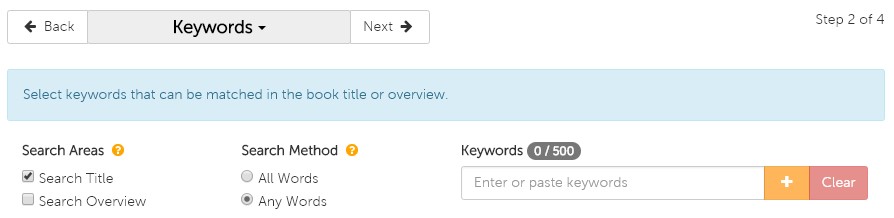
On the Keyword page, you are presented with a couple options before you begin your search—Search Areas and Search Method.


Keyword options


Search Areas

Search Areas determines which fields are included in the search. Under Search Areas, you are given three options:

  1. Search Title: search for your keywords in only book titles
  2. Search Overview: search for your keywords in only book overviews
  3. Both (check the boxes beside both Search Title and Search Overview): search for your keywords in both book titles and overviews

The default is set to search titles only but if you would like a more comprehensive search, we recommend you select both.


Search Method

Search Method determines how exact you would like the list generator to be when populating your list. Under Search Method, you are given two options:

  1. All Words: the search will look for results that include all keywords that are entered (e.g. if you were to enter 10 keywords, only results that include all 10 will be populated)
  2. Any Words: the search will look for results that include any of the keywords that are entered

The default is set to search any words, which will be most commonly used.


Now it’s time to add your keywords! You can either type them in one by one and click the  symbol after typing each keyword, or if you have a list already created in a text file or Excel spreadsheet, you can copy and paste that into the search bar. You can see how many words you have added on the counter just above the search bar, where you will be capped at 500.


REPORT FIELDS

On the Report Fields page, you have the ability to select the information you would like included in your downloadable Excel spreadsheet list. We have preselected several for you but you can alter these options to whatever you prefer. You even have the option to include the cover image, but please note that if your list exceeds 1,000 titles, the images will not appear due to file size constraints. When you are satisfied with your selections you can continue to the final step by clicking Next.


FINALIZE

On this last page, you will finalize your list and then move it to a shoppable format or create a template from the list and schedule it to be delivered to your email. The Review section gives you the ability to make any last-minute changes to any of the attributes that make up your list. Since we only selected Keywords for this list, all the other attributes listed should have All included or No filters applied listed. The only attribute that will be impacted from this tutorial is Keywords, and that will specify how many Keywords you selected.

The Name section is your next step, where you simply need to name your list. Once you have done that, you have the option to create a template by checking the box beside Create as template. If you choose to create the template, a scheduling program will appear that gives you several options including frequency of recurrence (weekly, monthly, yearly), start and end dates, day of the week, etc. You need to include the email address(es) that you want to send to list to, and you can also create a subject and message for that email to remind you of what you are receiving. Whether you choose to create a template or not, you must finalize the list by clicking on the green Create button at the bottom of the page.

If you decided to just create the list and not template it, you will see a pop-up to either view the list on our site using a special viewing page which allows you to add items to your cart, or to download the list to an Excel spreadsheet.


TEMPLATES

If you chose to create a template, you will see that list under My Templates. To view it immediately, you need to select Create Now and that list will be moved over to My Lists. By doing so, you now have the ability to open it on the custom view page on the site, or you can also download it to an Excel spreadsheet under Actions.


If you have any questions about this tool or any other functions of our Custom List tool, please contact us!

Email: [email protected]

Phone: 1-800-801-7193

Sidebar

Custom List Tool: Favorite Authors List

January 16, 2019

We think it would be fair to say that many wholesale buyers likely have a go-to list of their favorite authors—whether it’s written down or just a mental list—whose books typically guarantee sales and are always in demand by customers.

With Book Depot’s new Custom List tool, we have created a very easy way for you to upload your unique author list(s) of any size to our list generator. There is no longer a need to plug in one author at a time in the search bar. Now you can upload them all at once and shop the entire list! Once your list is created, you can refer back to it as often as you want or even create a template to have that list emailed to you at the frequency of your choosing.


Video Tutorial

Here is a brief video tutorial to show you how to use this tool:


Step-by-Step Instructions

Once you are logged into your account, you can find our Custom List tool under the profile icon at the top of the webpage in My Lists (or by clicking here). When you get to the page, you may notice that you already have a list or two already created. These are example lists we have created for you to help get you started and to aid your browsing experience.

GETTING STARTED

To create a Favorite Authors list, start by clicking on Create. You will see a list of several attributes that you can create a list from. For the purpose of this tutorial, check the box next to Author and select Next to proceed to the next page.

AUTHOR

On the Author page, allow a few seconds for the page to load with the thousands of authors that are in our database. In the filter bar you can start typing in the names of your targeted authors, but please remember to use the sequence: last name, first name. As you type in the name, the list will begin to filter down your selection until you see the author you are looking for. When you see the author’s name that you are interested in, simply check the box next to their name. You will now see number alongside the Author heading above the filter bar indicating how many authors you have selected.

To make this process even quicker for you, you also have the option to import a list that you have already created in either a text or Excel file. Simply copy and paste your list into the filter bar, remembering again to use the correct format (last name, first name), and all the author matches we have in our database will be added to your list. When you have added all the names you desire, you can move onto the next page by clicking Next.

REPORT FIELDS

On this next page, you have the ability to select the information you would like to be included in your downloadable Excel spreadsheet list. We have pre-selected several for you but you can alter these options to whatever you prefer. You even have the option to include the cover image, but please note that if your list exceeds 1,000 titles, the images will not appear due to file size constraints. When you are satisfied with your selections you can continue to the final step by clicking Next.

FINALIZE

On this last page, it’s now time to finalize your list and then move it to a shoppable format or create a template from the list and schedule it to be delivered to your email. The Review section gives you the ability to make any last-minute changes to any of the attributes that make up your list. Since we only selected Authors for this list, all the other attributes listed should have All included or No filter applied listed. The only attribute that will be impacted from this tutorial is Authors, and that will specify the number of authors you have selected for your list.

The Name section is your next step, where you simply need to name your list. Once you have done that, you have the option to create a template by checking the box beside Create as template. If you choose to create the template, a scheduling program will appear that gives you several options including frequency of recurrence (weekly, monthly, yearly), start and end dates, day of the week, etc. You need to include the email address(es) that you want to send to list to, and you can also create a subject and message for that email to remind you of what you are receiving. Whether you choose to create a template or not, you must finalize the list by clicking on the green Create button at the bottom of the page.

If you decided to just create the list and not template it, you will see a pop-up to either view the list on our site using a special viewing page which allows you to add items to your cart, or to download the list to an Excel spreadsheet.

TEMPLATES

If you chose to create a template, you will see that list under My Templates. To view it immediately, you need to select Create Now and that list will be moved over to My Lists. By doing so, you now have the ability to open it on the custom view page on the site, or you can also download it to an Excel spreadsheet under Actions.

If you have any questions about this tool or any other functions of our Custom List tool, please contact us!

Email: [email protected]

Phone: 1-800-801-7193

Sidebar

Oddball Authors

September 12, 2018

For centuries, authors have been providing us with great stories of adventure, mystery, romance, comedy, and so much more. If you’ve ever found yourself wondering how they do it, you’re not alone! We were curious too, so we set out to find the quirkiest routines and most superstitious beliefs that have transpired behind the scenes to create some of the greatest pieces of literature in history. But don’t take our word for it; without further ado, here’s our list—we hope you enjoy reading it as much as we did compiling it.


Victor Hugo (1802-1885)

Most known for: Les Misérables

Victor Hugo’s antics while writing The Hunchback of Notre Dame on a very tight schedule is the perfect way to start the list. In order to hit his deadline, Victor put himself on self-imposed house arrest for months, knowing that he would have to start paying fines if he didn’t hit his February 1831 deadline! He locked his clothes away to avoid any temptations to leave and only allowed himself to keep one grey shawl so he would be forced to stay inside and write.1


James Joyce (1882 – 1941)

Most known for: Ulysses

James Joyce was known for writing while lying on his stomach in bed with a large blue pencil, donning a white coat. Since James was nearly blind, the large writing utensil helped him see what he was writing and the white coat helped reflect more light onto the page. A typewriter would have helped him write easier and faster; however, he straight out refused because he was always seeking the “perfect order of words in the sentence” and wanted to write at his own pace and in his own hand. After what James would have considered a productive day, he would have completed two sentences.2


Edith Sitwell (1887-1964)

Most known for: Still Falls the Rain

British poet Edith Sitwell found inspiration in confined spaces. Before she would start writing for the day, Edith would always clear her mind by laying in an open coffin.3


Agatha Christie (1890-1976)

Most known for: Murder on the Orient Express

Agatha Christie had her own favorite writing place—in the bathtub. When she was renovating her home, Agatha had one request for the architect: “I want a big bath and I need a ledge because I like to eat apples.” For her, it was not about indulging; the bathtub was her prime work space.4

Agatha Christie books available here.


Vladimir Nabokov (1899-1977)

Most known for: Lolita

Vladimir Nabokov wrote entire novels on index cards. This allowed him to write scenes non-sequentially, as he could then easily rearrange the cards as he wished. Fun fact: his novel Ada was written on more than 2,000 cards.5

Nabokov in America: On the Road to Lolita available here.


Thomas Wolfe (1900-1938)

Most known for: Look Homeward, Angel

Thomas Wolfe gave himself a writing quota of ten pages, triple-spaced, every day. Not only did he have a page count to meet, but Thomas would also do this daily writing while leaning over his refrigerator since he was so tall (6’6” to be exact).6

Thomas Wolfe’s You Can’t Go Home Again available here.


Eudora Welty (1909-2001)

Most known for: The Optimist’s Daughter

Eudora Welty used to straight-pin her stories together in strips so they could be seen as a whole as she wrote. Welty even mentioned to a friend once that “[w]hen the stories got too long for the room I took them up on the bed or table [and] pinned and that’s when my worst stories were like patchwork quilts, you could almost read them in any direction.”7


Anthony Burgess (1917-1993)

Most known for: A Clockwork Orange

Anthony’s tool to fight off writer’s block was a dictionary. When he found himself stuck while writing, he would grab a dictionary and attempt to use every last word on the page he opened. When he would come across the need to describe a dull object, he would use the same strategy by attempting to use every word on the page in the description alone.8


Truman Capote (1924-1984)

Most known for: In Cold Blood

While some authors had unique writing habits, Truman Capote brought his superstitions into his writing process. He “wouldn’t begin or end a piece of work on a Friday, would change hotel rooms if the room phone number involved the number 13, and never left more than three cigarette butts in his ashtray.”9

Truman Capote’s A Christmas Memory available here.


Maya Angelou (1928-2014)

Most known for: I Know Why the Caged Bird Sings

Maya Angelou wouldn’t write from the comfort of her own home but would instead rent a hotel room on a monthly basis. She would routinely start at the crack of dawn right until the early afternoon. Nobody would be allowed to enter during that time unless it was to clear out items in the room to remove distractions. The only items she allowed exceptions for were “a bottle of sherry, a dictionary, Roget’s Thesaurus, yellow pads, an ashtray, and a Bible.”10

Maya Angelou books available here.


Stephen King (1947-present)

Most known for: The Shining

Stephen King may be known for his horror writings but that does not mean he is impervious to fear. Stephen King suffers from triskaidekaphobia – fear of the number 13. He has said that, “[w]hen I’m writing, I’ll never stop work if the page number is 13 or a multiple of 13; I’ll just keep on typing till I get to a safe number. When I’m reading, I won’t stop on page 94, 193, or 382, since the sums of these numbers add up to 13.”11

The Stephen King Companion available here.


George R.R. Martin (1948-present)

Most know for: A Song of Ice and Fire Series

George R.R. Martin considers himself “a man of the 20th century” because he still writes with a DOS computer that is not connected to the Internet. He uses WordStar 4.0 as his word-processing system and says that this program (released in the late ’70s) “does everything I want a word processing program to do and it doesn’t do anything else. I don’t want any help. I hate some of these modern systems where you type a lowercase letter and it becomes a capital. I don’t want a capital. If I wanted a capital I would have typed a capital.”12

George R.R. Martin books available here.

Dan Brown (1964-present)

Most known for: Angels & Demons

Dan Brown concentrates on his writing by putting on a pair of gravity boots and hanging upside down since he believes inversion therapy helps with his writing process. On top of that, he also keeps an hourglass on his desk so that on the hour, every hour, he sets aside his work to do push-ups, sit-ups, and other exercises.13

Dan Brown’s Angels & Demons available here.


J.K. Rowling (1965-present)

Most known for: Harry Potter Series

J.K. Rowling refuses to title a piece during the writing process and has said that she will only type up the title page once the book is completely finished.14


Valerie Stark

Marketing Coordinator

Book Depot


______________________

1 Joyce, James. 1966. Letters of James Joyce. London: Faber and Faber.

2 Johnson, Celia Blue. 2013. Odd Type Writers. New York: TarcherPerigee.

3 Ackerman, Diane. 1990. A Natural History of the Senses. Vintage Books USA.

4 Johnson, Celia Blue. 2013. Odd Type Writers. New York: TarcherPerigee.

5 Ackerman, Diane. 1990. A Natural History of the Senses. Vintage Books USA.

6 Wolfe, Tom. 1991. “Tom Wolfe, The Art of Fiction No. 123.” The Paris Review (118). https://www.theparisreview.org/interviews/2226/tom-wolfe-the-art-of-fiction-no-123-tom-wolfe.

7 Marrs, Suzanne. 2011. What There Is to Say We Have Said: The Correspondence of Eudora Welty and William Maxwell. New York: Houghton Mifflin Harcourt.

8 Illuminati, Chris. 2017. “10 Odd Writing Habits Of Famous Authors.” https://www.oddee.com/list/odd-writing-habits-famous-authors/.

9 Inge, M. Thomas. 1987. Truman Capote: Conversations. Jackson: University Press of Mississippi.

10 Angelou, Maya. 1990. “Maya Angelou, The Art of Fiction No. 119.” The Paris Review (116).

11 Rogak, Lisa. 2009. Haunted Heart: The Life and Times of Stephen King. New York: Thomas Dunne Books.

12 Martin, George R.R. 2014. “Game of Thrones author George RR Martin: ‘Why I still use DOS’.” BBC. http://www.bbc.com/news/technology-27407502.

13 Henley, Jon. 2013. “How Dan Brown and other authors defeat writer’s block.” The Guardian. https://www.theguardian.com/books/shortcuts/2013/may/13/dan-brown-authors-writers-block.

14 Rowling, J.K. 2015. “The Weird World Of Writer Superstitions.” Writers Relief. http://writersrelief.com/blog/2015/10/writer-superstitions/.

Sidebar

Why It Is Important for Your Business to Give Back

August 21, 2018

The “give back” movement has been experiencing a groundswell of support over the last several years and does not see any signs of experiencing a drop-off in the near future, especially with the tumultuous political and social climate we are all experiencing. This philosophy is lived daily at Book Depot in all that we do, whether it is partnering with nonprofits to help them procure books for fundraisers or donating books for literacy drives. We feel this is a core value that permeates our organization from ownership all the way through the entire team. You may certainly be thinking to yourself, “why should I be giving back?” or “I do not have the financial resources to give.” It is a completely understandable reaction. However, we have come up with a list of possible ways to give back in your community that could perhaps jump-start your own initiative.


Book drives

For minimal cost, you can place a box in your store earmarked for your customers to donate their slightly used books. Then either on a regularly scheduled date, or simply as the box fills, you can deliver them to a local school, shelter, or other charity (a coin donation box at the checkout also does the trick).


Your gift of time

Your time is certainly of value. If you and your team can set aside a day—or even an afternoon—to provide meals, do a charity walk, or adopt a section of highway, you will be making a difference. It is also an awesome team bonding experience!


Sales percentages

Set aside a designated day to provide a portion of your proceeds to a local charity. One suggestion would be on “Giving Tuesday.” This year it will occur on November 27 and has become as ingrained in the public conscientiousness as Black Friday and Cyber Monday. It does not have to be a large portion; even 5% would go a long way in making a difference.


Offer your space

Provide a space in your store for a nonprofit to utilize as meeting space. It could be at a traditionally slow time or during off-hours, so it does not negatively impact your operation. Who knows, someone in attendance could buy a book…


Benefits

As people, we give mostly for selfish reasons—because it feels good. It nurtures our souls and gives us a sense of pride that we made a difference in the lives of the less fortunate. As a business, benefits stretch far beyond that and include (but are not limited to):

  1. Ignites your customer base. 85 percent of customers prefer businesses and brands that support a charity they care about, translating to higher traffic and sales revenue in your store.1
  2. Charitable donations are tax deductible if you are supporting an IRS/CRA approved nonprofit organization.
  3. Increased visibility by free marketing and publicity. Oftentimes charities are exceptional with getting the message out. Whether it is with the local media or on their social media pages, they will promote your organization for the assistance you provided. (Side note: do not forget to reciprocate the favor by promoting them on your own social media channels.)
  4. Employee relations. People love working for organizations that are not just out for themselves or to only turn a profit. Those businesses that care about their town and their neighbors will have a happier team and be more attractive to prospective employees in the future.
  5. Strengthens your market reach. A more literate community means a larger customer base. An example of this would be how providing books for schools ignite a child’s love of reading, turning them into readers who are looking to expand their own book collection.
  6. Create customer loyalty. 90 percent of customers say they would be more loyal to a brand that gives to a local cause that resonates with them.2


Get started

Lastly, you may be thinking, “where would I even start”? There are thousands of deserving charities and nonprofits that could easily resonate and are well-deserving. We suggest three starting points. First, start locally. No better place to make a difference than in your own backyard. Second, start small and build upon your success step-by-step. You will look back in a few years and be amazed at what you were able to do in a relatively short amount of time. Lastly, we suggest you “take a backseat” on this one. It is certainly easier said than done when we are used to leading every aspect of our businesses, but on this topic, let your team decide democratically who will be the benefactor of your resources. Your group experience will have a much higher chance of success if everyone buys into the philosophy of giving back.


Good luck and please let us know how your group made a difference. We would love to celebrate your successes on our social channels!


Greg Sizelove

Business Development Director

Book Depot


______________________

1 Heitzman, Adam. 2016. Why Giving Back Should Be Part of Your Marketing Strategy. May 10. Accessed August 8, 2018. https://www.inc.com/adam-heitzman/why-giving-back-should-be-part-of-your-marketing-strategy.html.

2 Tabaka, Marla. 2015. Why It’s Crucial for Your Company to Give Back. January 26. Accessed August 8, 2018. https://www.inc.com/marla-tabaka/7-reasons-to-become-a-philanthropist-now.html.


Photo courtesy of Bernie’s Book Bank.

Sidebar