At Book Depot, our mission is to save you time and money by offering you the largest selection of high-margin books. However, we do realize that along with a large selection comes a lot more books to sort through when searching for the items you want, which takes time. That is why we have set a goal to create new tools for you on our website over the upcoming months that will help you to sort through our inventory in a faster and more efficient way.
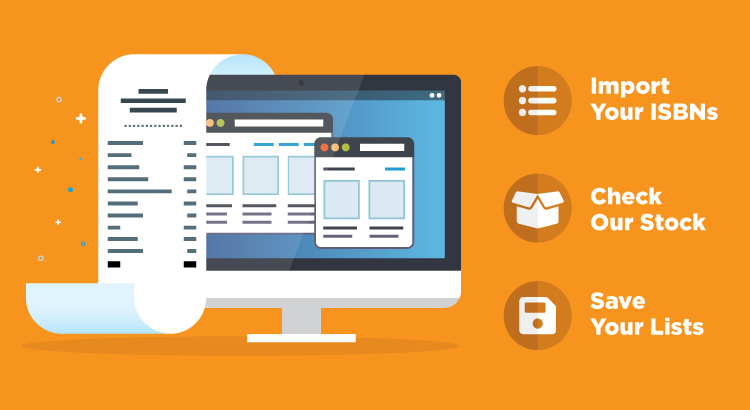
Let us introduce the latest addition to the Book Depot website, the Check Inventory tool! Yes, you have always been able to check our inventory by entering an ISBN, title or author into our search bar one at a time, but this tool allows you to search up to 1,000 titles all at one time! You have the choice to either import in a list of ISBNs from Excel or paste a list directly into the text field. Once you import or paste that list, a viewable, customized, and shoppable list will immediately be generated for you to view. Comparing your book needs to our title selection has never been easier!
But wait—there’s more! Not only can you import these lists to compare and shop our inventory immediately, but you can also save the lists to your profile (as long as you are logged in) to view later. You can have as many as eight different lists saved to you profile at any given time, which allows you to check back and add to the list at a later date. If we have had the title before, whether it is currently in stock or not, it will show up on the list with our current quantity. Each time you log in, the quantity available will be updated to our current inventory levels. Gone are the days of searching for one ISBN at a time! Do you want to keep your adult titles separate from your kids’ titles? This tool now gives you the ability to do just that. Maybe you have multiple buyers for different categories? They can each create their own the Inventory Checker list!
How do you get to this new tool you may be asking? Once you are logged in, simply click on the icon at the top of the page and click Check Inventory to get started.
If you would like a brief tutorial on how to use this function, take a look at our video below.
This is the first of many new website tools that we will be launching over the next few months. We really hope you find this useful and it saves you time! If you have any questions or problems, please contact one of our customer service reps and they will be glad to assist you. If you have any suggestions we would love to hear from you.
Sidebar
Custom List Tool: Refine Your Custom Lists
March 3, 2019
When you are using the Custom List tool, the Arrival Date and Exclude Lists attributes can work hand-in-hand to help you refine your lists and are very valuable tools when you are looking for the latest product. Sure, you can scan our New Arrivals list every couple of days like many of our customers do, but with this new tool you can do so much more—you can set additional parameters around the newest products, filter out any features you don’t want, and even schedule your list so it is emailed to you at the frequency of your choosing.
Video Tutorial
Here are brief video tutorials to show you how to refine your custom lists:
Arrival Dates:
List Exclusions:
Step-by-Step Instructions
To demonstrate how to use the Arrival Date and Exclude Lists filters, let’s walk through an example.
START
For the purpose of this example, we will create a list of new biography and autobiography titles that can be regularly emailed at a desired frequency. To start, select Category, Arrival Date, and Exclude Lists from the list of attributes on the Start page. Click Next to move forward to the Category page.
CATEGORY
On the Category page, select Biography & Autobiography from the list of categories and then click Next to move ahead to Arrival Date page.
ARRIVAL DATE
On the Arrival Date page, you have the ability to select a date range for when new products have become available for sale. Your options include:
Anytime
1 Day
1 Week
2 Weeks
1 Month
2 Months
3 Months
If none of these options are the right fit for you, you can also select Other, which allows you to set your own date using the calendar. For this example, we will select 1 Week. This means that the list will only include new biography and autobiography titles that came into inventory within the past week. Once you have made the selection, click Next to move to the Exclude Lists page.
EXCLUDE LISTS
The Exclude Lists attribute is one more feature that gives you better control of our inventory and helps you manage the size of your lists. Since Book Depot can regularly receive returns from the same publisher and because we are sorting more product on a daily basis than ever before, there is a fair bit of title duplication over a period of time within our new arrivals. However, the Exclude Lists attribute gives you the option to prevent any titles from your previous lists from appearing on the current list you are creating. More specifically, you can exclude lists from the following tabs:
My Lists
Custom Lists
From Sales Rep
Templates
For each of these options, you can also exclude titles based on a set time span or date. Your date-related exclusion options are:
Weeks (#)
Months (#)
Years (#)
Calendar Date
Continuing our example, to ensure your list does not include any books that have appeared in your previous lists for the past month, you can check the Exclude box next to the lists and select Time Span – 1 Month. This will effectively trim down your list to the newest titles and remove any duplicate titles you have seen recently.
REPORT FIELDS
The Report Fields page allows you to select the information you would like to be included in your downloadable Excel spreadsheet list. We have preselected several for you, but you can alter these options to whatever you prefer. You can even include the cover image, but please note that if your list exceeds 1,000 titles, the images will not appear due to file size constraints. When you are satisfied with your selections, you can continue to the final step by clicking Next.
FINALIZE
On the Finalize page, you have the ability to take your list and template it, and then schedule an email so you are automatically notified at the frequency of your choosing. The first thing you will want to do is name your list. Next, click the checkbox beside Create as template. Once you check that box, a new menu of options will pop up that will allow you to choose how often and for how long your list is emailed to you.
Recurrence Pattern
The Recurrence Pattern is where you will select the regular frequency of the email—weekly, monthly, or yearly. For this example, if we give this list a weekly recurrence pattern, you can then select which day of the week you will receive the list (e.g. if Monday is selected, every Monday you will receive a list of newly-added biography and autobiography titles from the past week from Book Depot’s inventory).
Email Notification
The Email Notification section allows you to specify the email address(es) your list will be sent to as well as customize the email message itself. The default email address is the one that is associated with your account. However, if you would like to replace your default email address with a different one, you can do so by clicking the small “x” on the right-hand side of the blue button. You can also add additional email addresses if you would like others on your team to receive these regular lists. As for the messaging, we have a default subject line as well as a blank body paragraph that will populate once the email is sent, but you can change and/or add any other information you would like.
Create
Now that you have entered all of your preferences, you are ready to click the green Create button. By clicking Create, you have officially saved your template and scheduled your recurring email!
QUESTIONS?
If you have any questions about this tool or any other functions of our Custom List tool, please contact us!
Life is busy—there are more things we need to do in a day than there are hours available! We understand that for some people, looking at product is a necessity, and for others, it is an ever-eluding desire. You wish you could carve out an hour of your day (or week) to check out what’s new at Book Depot, but it becomes an afterthought in all of the hustle and bustle of your day-to-day schedule.
With Book Depot’s new Custom List tool, we have created a very easy way for you to make a custom shoppable list on our website that will save you time! This tutorial focuses on the final steps before you complete your list, where you have the ability to template and auto-schedule it so that reviewing Book Depot product is quicker and easier than ever. The goal of this tool is to give you more control over the flow of information and create helpful ways to fit our product lists into your schedule!
What exactly do we mean by template? If you think of it in terms of a word processing or design template, it is a structure that allows you to repeat a pattern using a predetermined set of guidelines. In terms of creating a Book Depot catalog template, you have the ability to save the filters you are interested in seeing (categories, publishers, bindings, etc.) and repeat that query as often you would like against our ever-changing inventory.
Video Tutorial
Here is a brief video tutorial to show you how to use this tool:
Step-by-Step Instructions
Let’s walk through a simple scenario to demonstrate how to use the tool. Say you only want to create a board book list. We will create a simple catalog by selecting format from our list of editable attributes, and then selecting board books from the full list of formats.
FINALIZE
Moving ahead to the Finalize page, you now have the ability to take your list and template it, and then schedule an email so you are automatically notified at the frequency of your choosing. The first thing you will want to do on the Finalize page is name your list (in this instance we will just call it “Board Book List”). Next, click the checkbox beside Create as template. Once you check that box, a new menu of options will pop up. This is the convenient Auto-Scheduling tool, which gives you the ability to have your list sent to you by email as often as you would like. Let’s break down each option.
Recurrence Pattern
The first element you will want to set is your Recurrence pattern. This is where you will select the regular frequency of the email—weekly, monthly, or yearly.
Start and End Date
After you select your frequency, you can select your start date and end date. The start date is the first day you would like your list emailed to you. The end date is preset to run indefinitely, but you can select a final date if you wish.
Weekly/Monthly/Yearly
The section below the start and end dates will change depending on your recurrence pattern.
Weekly
If your pattern is to send weekly, you will have the ability to modify the time gap between sends. For instance, if you only want to receive the list every other week, you can select weekly for your recurrence but increase the numeric field to 2 so that it says “Send every 2 weeks.” If you leave this field set at 1, you will receive the list every week. From here, you can choose which weekdays you would like to receive your list email. You have the ability to select as many days as you would like.
Monthly
If you select monthly, you will see that this section changes slightly. You now have the ability to send your list every set number of months on the day of your choosing. For example, “Send every 2 months on day 15” means that your list will be emailed to you every other month on the 15th of that month.
Yearly
When you change the recurrence pattern to yearly, the section slightly changes again. Now you have the ability to select the yearly frequency as well as the day of your choosing. When the date field is selected, a small calendar will appear to help you select the month and day. The yearly option would be helpful in an instance where you have an event you need to buy for only once a year. You now have the ability to build a template and schedule it to be sent to your email annually.
Email Notification
The last section allows you to include the email address(es) your list will be sent to as well as customize the email message itself. The default email address is the one that is associated with your account. However, if you would like to replace your default email with a different one, you can do so by clicking the small “x” on the right-hand side of the blue button. Here, you also have the ability to add additional emails if you would like others on your team to receive these regular lists as well. As for the messaging, we have a default subject line as well as a blank body paragraph that will populate once the email is sent, but you can change and/or add any other information you would like.
Create
Now that you have entered all of your preferences, you are ready to click the green Create button. By clicking Create, you have officially saved your template and scheduled your recurring email. You are now done and can put your feet up as you wait for your next list email to arrive!
QUESTIONS?
If you have any questions about this tool or any other functions of our Custom List tool, please contact us!
Using the Custom List tool, you can create a custom list that includes a single publisher or multiple publishers at one time!
This is an incredibly useful tool if you have a favorite publisher(s)! Now you can include all of your favorite publishers and their imprints in one search; gone are the days when you would repeatedly have to search for one imprint at a time! For instance, if you are interested in everything Book Depot offers from Harper Collins, you can go to the Custom List tool and select Harper Collins, as well as their imprints such as Ecco, William Morrow, ReganBooks, etc. This allows you to create a new master list of all your favorite publishers to reference at any time. You can even add bonus filters by selecting additional attributes, such as specific categories for that publisher list or maybe a specific binding. Want a list of all Harper Collins imprints that offer hardcover, children’s fiction? Voilà! That is now possible at the click of the button. The more you dig into this tool the more useful applications you will find for your business.
PURCHASE HISTORY
If you are not sure which publishers you would want to select, we can help you with that as well. In the new Purchase History section of our website, under the profile icon at the top of the page, we have created a tab for Publishers. This tab tracks which publishers you purchase most often. Using this information, you can create a Custom List of your most purchased publishers!
Video Tutorial
Here is a brief video tutorial to show you how to use this tool:
Step-by-Step Instructions
Once you are logged into your account, you can find our Custom List tool under the profile icon at the top of the webpage in My Lists (or by clicking here). When you get to the page, you may notice that you already have a list or two already created. These are example lists we have created for you to help get you started and to aid your browsing experience.
GETTING STARTED
To create a Publisher list, start by clicking on Create. You will see a list of several attributes that you can use to create your list. For the purpose of this tutorial, check the box next to Publisher and select Next to proceed to the next page.
PUBLISHER
In the Publisher section, you will see a massive list of all the available publishers and imprints. This list is alphabetical so you can either scroll through the list or type in the name that you desire in the search bar. Once you have selected all of the publishers/imprints that you are interested in, select Next at the bottom of the page.
REPORT FIELDS
On the Report Fields page, you can easily select the information you would like included in your downloadable Excel spreadsheet list. We have preselected several for you, but you can alter these options to whichever you prefer. You even have the option to include the cover image, but please note that if your list exceeds 1,000 titles, the images will not appear due to file size constraints. When you are satisfied with your selections, you can continue to the final step by clicking Next.
FINALIZE
The Review section gives you the ability to make any last-minute changes to any of the attributes that make up your list. Since we only selected Publisher for this list, all the other attributes listed should have All included or No filters applied listed. The only attribute that will be impacted from this tutorial is Publishers, and that will specify how many publishers/imprints you selected. If you want to make any additional edits to the other attributes, you can do that at this time. For example, maybe you only want to look at those publishers in select categories or specific arrival dates, you can select Edit and customize this list to your needs.
CREATING THE LIST
The Name section is your next step, where you simply need to name your list. Once you have done that, you have the option to create a template by checking the box beside Create as template. If you choose to create the template, a scheduling program will appear that gives you several options including frequency of recurrence (weekly, monthly, yearly), start and end dates, day of the week, etc. You need to include the email address(es) that you want to send to list to, and you can also create a subject and message for that email to remind you of what you are receiving. Whether you choose to create a template or not, you must finalize the list by clicking on the green Create button at the bottom of the page.
TEMPLATES
If you choose to create a template when creating your list, you will find that list under My Templates. To immediately view the list, select Create Now and it will be moved to My Lists. By doing so, you now have the ability to open it on the website custom view page or you download it to an Excel spreadsheet, under Actions.
QUESTIONS?
If you have any questions about this tool or any other functions of our Custom List tool, please contact us!
Categories may be an area where you wouldn’t think you would need a tool to assist you in browsing our online book selection. We already include a list of categories on the side bar of our pages that easily filters the list of titles—what could be easier?
What the website does not currently offer, however, is the ability to compile as many categories and subjects as you desire into one list, which makes the category selection tool extremely valuable! For example, if you have a store that specializes in science fiction books, you would need to go to the Fiction category on the website and select the Science Fiction subject (and maybe Fantasy as well). However, this filtering would only include adult titles. You may also be interested in young adult and tween science fiction titles so then you would head to the Young Adult Fiction category and select the Sci-Fi subject, followed by a look through the Tween category with the Sci-Fi subject as well. By doing this, browsing the titles that you are interested in can become a tedious process. Here is where the Category/Subject List Tool is going to save you time and allow you to generate all the titles that are of interest to you.
Through this example, you can start to see how useful this tool really is! For further flexibility, once you have created a list that includes all of your interests you also have the ability to save it all into a single template and have that delivered to your inbox as often as you like. Now that is a timesaving tool!
Video Tutorial
Here is a brief video tutorial to show you how to use this tool:
Step-by-Step Instructions
Once you are logged into your account, you can find our Custom List tool under the profile icon at the top of the webpage in My Lists (or by clicking here). When you get to the page, you may notice that you already have a list or two already created. These are example lists we have created for you to help get you started and to aid your browsing experience.
GETTING STARTED
To create a Category list, start by clicking on Create. You will see a list of several attributes that you can create a list from. For the purpose of this tutorial, check the box next to Category and select Next to proceed to the next page.
CATEGORY
On the Category page, you are first presented with many category options. Once a category is selected, the corresponding subject options will appear. From there you have the ability to select as many categories and subjects as you would like!
Let’s walk through the example presented at the beginning of this tutorial to demonstrate how exactly this tool works. Start by clicking on Fiction under the list of categories. Once selected, a second list of options appear that display all the subjects under the category that was selected. Travel down the list and select the subjects of interest or click Select All if you would like to proceed with the entire list of subjects available.
For the purpose of this example, we only want a couple of the subjects under fiction, so we will select Science Fiction and Fantasy as our subjects. As you select your subjects you will see a number at the top increase, displaying how many subjects are selected. From here we can continue the same process with additional categories. Again, to follow through on this specific example, we will select Tween Fiction as the category and then Sci-Fi as the subject. Finally, we will select Young Adult Fiction as the category and then Sci-Fi as the subject. Now that this list covers three different categories and a few subjects, let’s move onto the next page.
REPORT FIELDS
On the Report Fields page, you have the ability to select the information you would like included in your downloadable Excel spreadsheet list. We have preselected several for you but you can alter these options to whichever you prefer. You even have the option to include the cover image, but please note that if your list exceeds 1,000 titles, the images will not appear due to file size constraints. When you are satisfied with your selections you can continue to the final step by clicking Next.
FINALIZE
On this last page, you will finalize your list and then move it to a shoppable format or create a template from the list and schedule it to be delivered to you by email. The Review section gives you the ability to make any last-minute changes to any of the attributes that make up your list. Since we only selected Category for this list, all the other attributes listed should have All included or No filters applied listed. The only attribute that will be impacted from this tutorial is Category & Subjects, and that will specify how many categories and subjects you selected.
The Name section is your next step, where you simply need to name your list. Once you have done that, you have the option to create a template by checking the box beside Create as template. If you choose to create the template, a scheduling program will appear that gives you several options including frequency of recurrence (weekly, monthly, yearly), start and end dates, day of the week, etc. You need to include the email address(es) that you want to send to list to, and you can also create a subject and message for that email to remind you of what you are receiving. Whether you choose to create a template or not, you must finalize the list by clicking on the green Create button at the bottom of the page.
TEMPLATES
If you decided to just create a list and not make it into a template, you will see a pop-up to either view the list on our site using a special viewing page which allows you to add items to your cart, or to download the list to an Excel spreadsheet.
If you chose to create a template, you will see that list under My Templates. To view it immediately, you need to select Create Now and that list will be moved over to My Lists. By doing so, you now have the ability to open it on the custom view page on the site, or you can also download it to an Excel spreadsheet under Actions.
QUESTIONS?
If you have any questions about this tool or any other functions of our Custom List tool, please contact us!
Have you ever found yourself searching keyword variation after keyword variation to see all of the books available about a certain topic? The time has come where that manual (and no doubt tedious) process is no longer needed!
With Book Depot’s new Custom List tool, we have created a very easy way for you to search your keywords in our list generator. Now you have the ability to enter multiple keywords at one time and receive an immediate list of all the results where the keywords appear in the title and/or overview! For example, if you are interested in a list of keywords that is pertinent to your location, you may be searching for words related to the city, state, province, and/or country as well as any significant terms tied to your surrounding landmarks or geographical features. Now you can take all those keywords, compile them into one list, and search that against our entire inventory to find books that will be important to your business.
What’s even better is that once your list is created, you can refer back to it as often as you want or even create a template to have that list emailed to you at the frequency of your choosing.
Video Tutorial
Here is a brief video tutorial to show you how to use this tool:
Step-by-Step Instructions
Once you are logged into your account, you can find our Custom List tool under the profile icon at the top of the webpage in My Lists (or by clicking here). When you get to the page, you may notice that you already have a list or two already created. These are example lists we have created for you to help get you started and to aid your browsing experience.
GETTING STARTED
To create a Keyword list, start by clicking on Create. You will see a list of several attributes that you can create a list from. For the purpose of this tutorial, check the box next to Keywords and select Next to proceed to the next page.
KEYWORDS
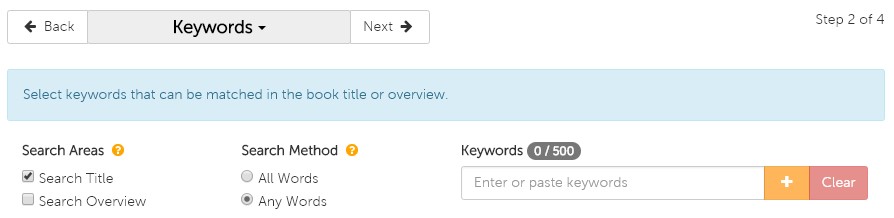
On the Keyword page, you are presented with a couple options before you begin your search—Search Areas and Search Method.
Search Areas
Search Areas determines which fields are included in the search. Under Search Areas, you are given three options:
Search Title: search for your keywords in only book titles
Search Overview: search for your keywords in only book overviews
Both (check the boxes beside both Search Title and Search Overview): search for your keywords in both book titles and overviews
The default is set to search titles only but if you would like a more comprehensive search, we recommend you select both.
Search Method
Search Method determines how exact you would like the list generator to be when populating your list. Under Search Method, you are given two options:
All Words: the search will look for results that include all keywords that are entered (e.g. if you were to enter 10 keywords, only results that include all 10 will be populated)
Any Words: the search will look for results that include any of the keywords that are entered
The default is set to search any words, which will be most commonly used.
Now it’s time to add your keywords! You can either type them in one by one and click the symbol after typing each keyword, or if you have a list already created in a text file or Excel spreadsheet, you can copy and paste that into the search bar. You can see how many words you have added on the counter just above the search bar, where you will be capped at 500.
REPORT FIELDS
On the Report Fields page, you have the ability to select the information you would like included in your downloadable Excel spreadsheet list. We have preselected several for you but you can alter these options to whatever you prefer. You even have the option to include the cover image, but please note that if your list exceeds 1,000 titles, the images will not appear due to file size constraints. When you are satisfied with your selections you can continue to the final step by clicking Next.
FINALIZE
On this last page, you will finalize your list and then move it to a shoppable format or create a template from the list and schedule it to be delivered to your email. The Review section gives you the ability to make any last-minute changes to any of the attributes that make up your list. Since we only selected Keywords for this list, all the other attributes listed should have All included or No filters applied listed. The only attribute that will be impacted from this tutorial is Keywords, and that will specify how many Keywords you selected.
The Name section is your next step, where you simply need to name your list. Once you have done that, you have the option to create a template by checking the box beside Create as template. If you choose to create the template, a scheduling program will appear that gives you several options including frequency of recurrence (weekly, monthly, yearly), start and end dates, day of the week, etc. You need to include the email address(es) that you want to send to list to, and you can also create a subject and message for that email to remind you of what you are receiving. Whether you choose to create a template or not, you must finalize the list by clicking on the green Create button at the bottom of the page.
If you decided to just create the list and not template it, you will see a pop-up to either view the list on our site using a special viewing page which allows you to add items to your cart, or to download the list to an Excel spreadsheet.
TEMPLATES
If you chose to create a template, you will see that list under My Templates. To view it immediately, you need to select Create Now and that list will be moved over to My Lists. By doing so, you now have the ability to open it on the custom view page on the site, or you can also download it to an Excel spreadsheet under Actions.
If you have any questions about this tool or any other functions of our Custom List tool, please contact us!
We think it would be fair to say that many wholesale buyers likely have a go-to list of their favorite authors—whether it’s written down or just a mental list—whose books typically guarantee sales and are always in demand by customers.
With Book Depot’s new Custom List tool, we have created a very easy way for you to upload your unique author list(s) of any size to our list generator. There is no longer a need to plug in one author at a time in the search bar. Now you can upload them all at once and shop the entire list! Once your list is created, you can refer back to it as often as you want or even create a template to have that list emailed to you at the frequency of your choosing.
Video Tutorial
Here is a brief video tutorial to show you how to use this tool:
Step-by-Step Instructions
Once you are logged into your account, you can find our Custom List tool under the profile icon at the top of the webpage in My Lists (or by clicking here). When you get to the page, you may notice that you already have a list or two already created. These are example lists we have created for you to help get you started and to aid your browsing experience.
GETTING STARTED
To create a Favorite Authors list, start by clicking on Create. You will see a list of several attributes that you can create a list from. For the purpose of this tutorial, check the box next to Author and select Next to proceed to the next page.
AUTHOR
On the Author page, allow a few seconds for the page to load with the thousands of authors that are in our database. In the filter bar you can start typing in the names of your targeted authors, but please remember to use the sequence:last name, first name. As you type in the name, the list will begin to filter down your selection until you see the author you are looking for. When you see the author’s name that you are interested in, simply check the box next to their name. You will now see number alongside the Author heading above the filter bar indicating how many authors you have selected.
To make this process even quicker for you, you also have the option to import a list that you have already created in either a text or Excel file. Simply copy and paste your list into the filter bar, remembering again to use the correct format (last name, first name), and all the author matches we have in our database will be added to your list. When you have added all the names you desire, you can move onto the next page by clicking Next.
REPORT FIELDS
On this next page, you have the ability to select the information you would like to be included in your downloadable Excel spreadsheet list. We have pre-selected several for you but you can alter these options to whatever you prefer. You even have the option to include the cover image, but please note that if your list exceeds 1,000 titles, the images will not appear due to file size constraints. When you are satisfied with your selections you can continue to the final step by clicking Next.
FINALIZE
On this last page, it’s now time to finalize your list and then move it to a shoppable format or create a template from the list and schedule it to be delivered to your email. The Review section gives you the ability to make any last-minute changes to any of the attributes that make up your list. Since we only selected Authors for this list, all the other attributes listed should have All included or No filter applied listed. The only attribute that will be impacted from this tutorial is Authors, and that will specify the number of authors you have selected for your list.
The Name section is your next step, where you simply need to name your list. Once you have done that, you have the option to create a template by checking the box beside Create as template. If you choose to create the template, a scheduling program will appear that gives you several options including frequency of recurrence (weekly, monthly, yearly), start and end dates, day of the week, etc. You need to include the email address(es) that you want to send to list to, and you can also create a subject and message for that email to remind you of what you are receiving. Whether you choose to create a template or not, you must finalize the list by clicking on the green Create button at the bottom of the page.
If you decided to just create the list and not template it, you will see a pop-up to either view the list on our site using a special viewing page which allows you to add items to your cart, or to download the list to an Excel spreadsheet.
TEMPLATES
If you chose to create a template, you will see that list under My Templates. To view it immediately, you need to select Create Now and that list will be moved over to My Lists. By doing so, you now have the ability to open it on the custom view page on the site, or you can also download it to an Excel spreadsheet under Actions.
If you have any questions about this tool or any other functions of our Custom List tool, please contact us!
 icon at the top of the page and click Check Inventory to get started.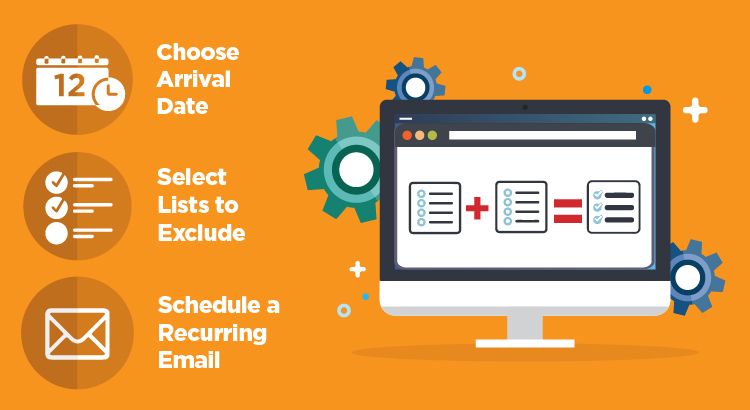


 symbol after typing each keyword, or if you have a list already created in a text file or Excel spreadsheet, you can copy and paste that into the search bar. You can see how many words you have added on the counter just above the search bar, where you will be capped at 500.